01B · The cloud route
Cloud Text to Image
Send the same fashion brief to an online image service. ComfyUI does this with a Partner Node: a node that sends your request to a company’s computers and brings back the image. Nothing is generated on your own machine, so no model files or graphics card are needed.
Before you start: sign in to your Comfy account inside ComfyUI and make sure it has credits, the prepaid units that cloud images are paid with. Buying credits is explained in Getting Started. No separate OpenAI account or key is needed.
- You’ll learn
- How a Partner Node replaces the models you ran yourself in 01A, which controls it offers, what affects the cost, and how to compare a cloud result with a local one.
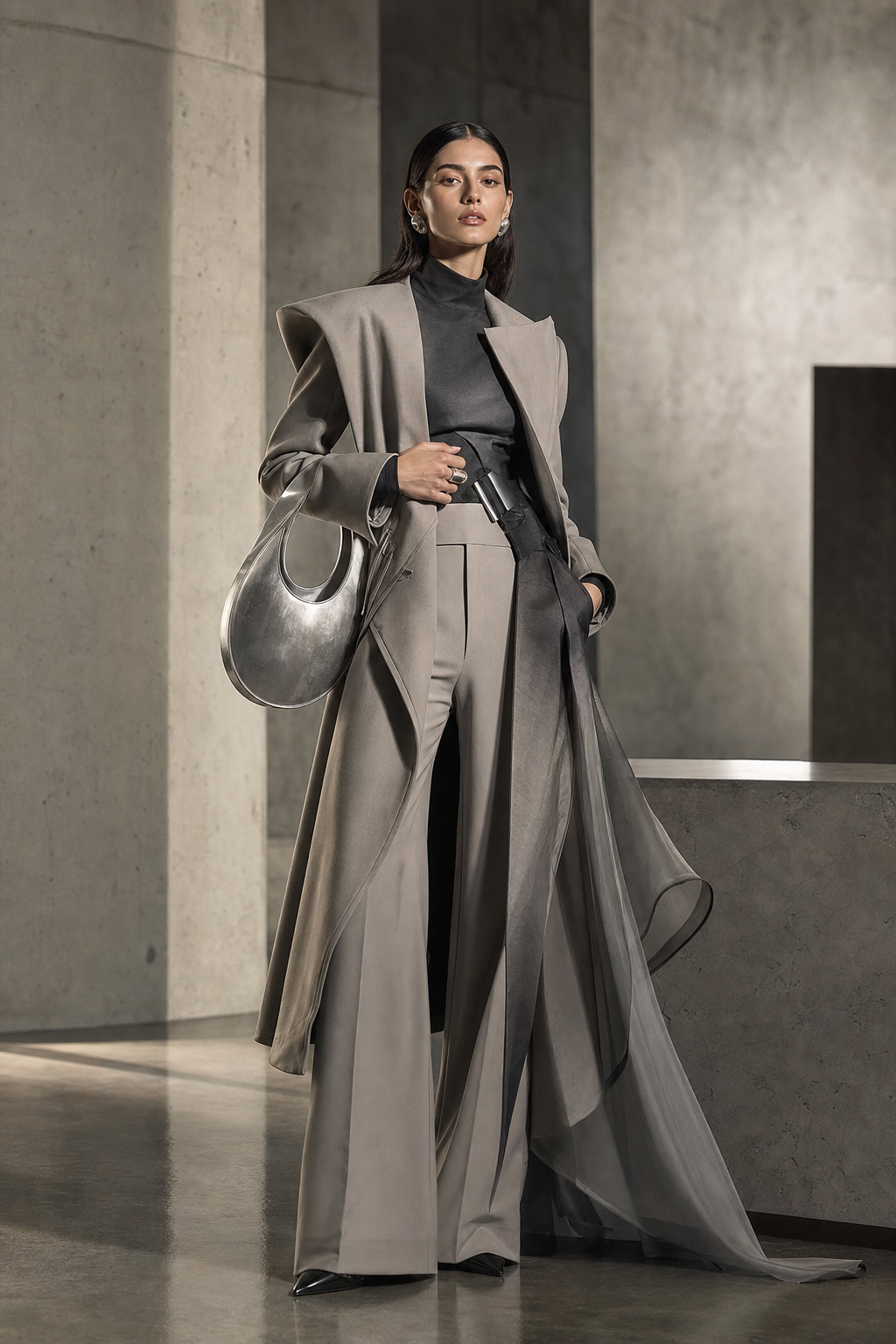
What goes in, what comes out
Your 01A briefGarment first: silhouette, fabric, construction. Then person, camera, light and setting.
Partner NodeOpenAI GPT Image 2 · 1024 × 1536 · high quality · 1 image
How the workflow works
Explained earlier:writing a brief · saving
Open the two-node workflow
The whole process is one OpenAI image node followed by Save Image. The image model, text encoder and VAE from 01A are all replaced by the provider’s service.
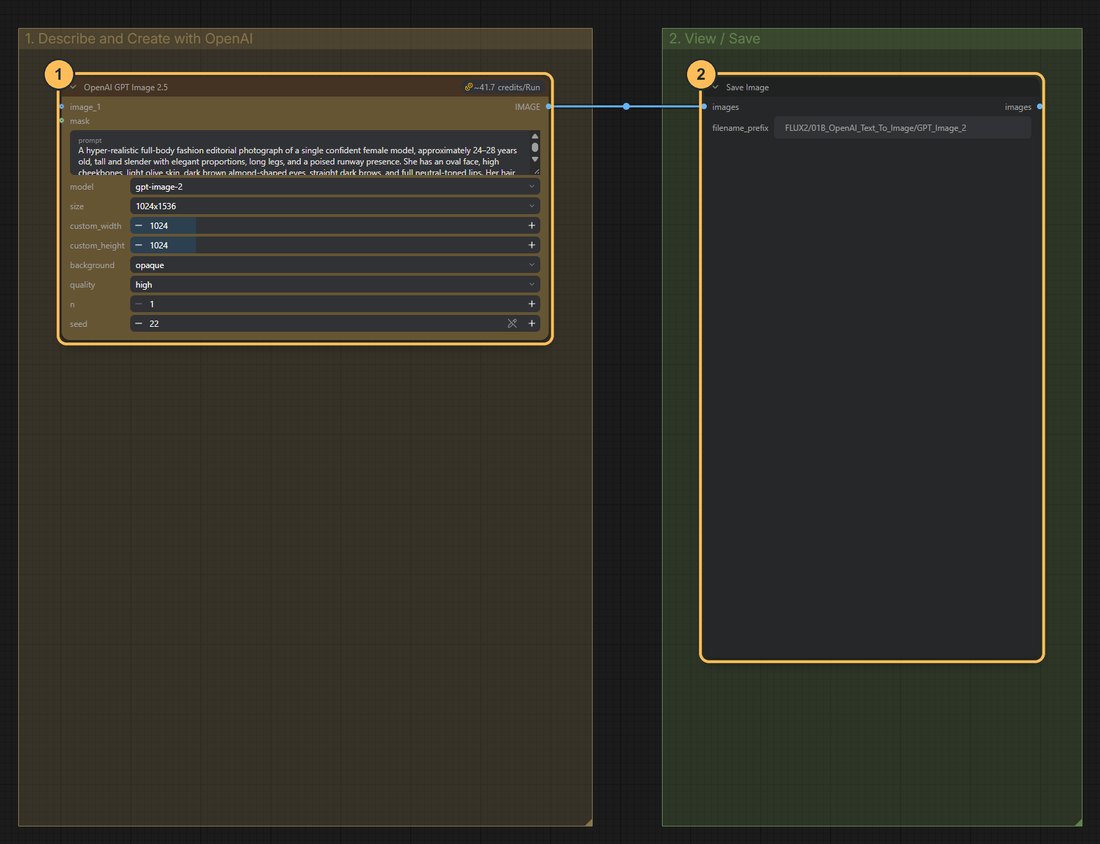
The whole workflow. Click to enlarge. - OpenAI image nodeHolds your brief and the settings: model, size, quality and number of images.
- Save ImageShows the result and saves it to the output folder.
Paste your brief
The prompt field holds the same garment-first brief as 01A. Using identical words keeps one input the same between the local and cloud versions.
Set the controls on the node
Control Saved value What it does Model gpt-image-2Decides which model is called. The node’s title mentions GPT Image 2.5 because the node offers several versions. The model field is what counts. Size 1024 × 1536 Portrait output. Larger sizes cost more. Quality high Cloud nodes have a quality setting instead of steps. Choose medium for cheaper experiments. Number of images 1 Each extra image is charged. Seed 22, fixed OpenAI does not guarantee that a seed reproduces an image. In ComfyUI it mainly decides whether an unchanged node is run again or its previous result is reused. Change it to request a new take. Leave the reference image inputs disconnected. This workflow is text to image only.
Check the cost before you run
The node shows a price badge. GPT Image 2 is charged by tokens (small units of text and image data), not at a fixed price per image, so the charge rises with quality, size, the number of images and any reference images you connect. The note inside the workflow suggests budgeting roughly 40 to 50 credits for this high-quality example. Treat that as an estimate and check the official pricing page, because prices change.
Cloud providers apply their own content rules and may refuse some requests.
Run, save and compare
Save Image writes the result to
output, as in 01A. To compare with your local result, place the two images side by side.Using the same brief keeps one input equal. It does not make this a like-for-like benchmark: the two models differ in size, training, image dimensions and settings, and their seeds are unrelated. Judge how well each image communicates the garment, not whether they look alike.
Which provider should I use?
Partner Nodes exist for many providers. The six used on this site are Google (Nano Banana Pro), OpenAI (GPT Image 2), ByteDance (Seedream 5.0 Pro), Black Forest Labs (FLUX.2 Pro), xAI (Grok Imagine Image 2.0) and Kling (3.0 Omni Image). There is no single best one, and results change as models are updated. Compare them on your own brief using four questions:
- Brief adherence: did it follow the garment, framing and setting you described?
- Garment detail: are seams, closures and fabric readable and plausible?
- Reference fidelity: when you supply images, does it keep the face and the clothing?
- Cost: what did the run charge, and how many attempts did you need?
Workflow 05 includes a second file that sends the same three references to all six providers.
Check the result
- Garment construction (seams, closures, layers) matches the brief
- The fabric reads as the material you described
- Framing, light and setting follow your instructions
- Nothing important was added that you did not ask for
If something is wrong, name it precisely in the prompt and run again. Each new cloud run is charged.
Download the workflow
- B_OpenAI_Text_To_Image.jsonCloud text-to-image workflow · uses Comfy account credits
Click a filename to download it, or right-click it and choose Save link as. Keep the .json ending. Then drag the file onto the ComfyUI canvas, or use Workflow → Open.